To begin the demo, you will need to create an account using your email address. Follow the instructions to set up your test family page. Members of your organization will follow the same steps to set up their individual pages.
Welcome to PledgeStar Elementary's PledgeStar-A-Thon page. We are raising money for various equipment and supplies that need improvement.
To complete your registration for this event, please click on "Not Registered For This Event?". If you have already registered, sign in under "Already Registered?". If you are a returning family from a previous event, you will need to register for this event separately.
Class that raises the most for our school receives a Pizza Party! Pizza Party donated by our sponsor, Generic Company
2nd Place Class Award
Popsicle Party! Class that raises the most for our school receives a Popsicle Party.
3rd Place Class Award
Popcorn Party! Class that raises the 3rd most for our school receives a Popcorn Party!
VIP Reading Rewards
The first 50 students to complete registration and send emails to their family and friends will receive a VIP Trip to the school library to hear Mrs. Mayer read and get extra time to search for your favorite books!
Extra Recess
Any student who completes registration and sends out 10 emails will earn an Extra Recess on our school playground!!
Super VIP Reading Rewards
The 5 students from each grade with the most overall home reading sessions recorded online by the last day of the Reading-Raise-A-Thon will enjoy a Super VIP Reader surprise and special recognition at the All School Celebration!
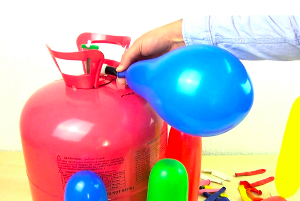
$20k Goal Helium Music Teacher!
Music teacher sings the whole school a song over the intercom with helium voice.
$40k Goal Pie Smash!
If the entire school hits the $40k goal, our student with the highest $ fundraised will get to smash a pie in the 7th grade teachers face!
$60k Mr Librarian Shaves Beard of 13yrs!
When the whole school hit's our $60k fundraising goal, Mr. Librarian has said he will shave his beard that he has had for 13 years!
$80k Principal Duct Tape to Wall!
When the whole school hit's our $80k fundraising goal, Principal Johnson will be duct taped to the wall during our assembly!
The site is designed with families in mind. We encourage you to enter all participants on the same account. Doing so will send a donation request from every participant at once, which will allow donors to make one donation that will be split evenly between the participants. If you want to register your participants separately, you can do so by logging out after registering the first participant. Then, register for a new family using a separate email address for the next participant. Repeat this process as needed to create individual pages for each participant.
What Happens When I Delete/Add a Participant to an Existing Account?
If a participant is deleted from or added to the family page, the donation total will be split evenly between the participants listed. If only one participant is listed, that participant will receive credit for all donations made to the family page. The deleted participant will be removed from all event reports and not receive any credit for raising any money. If you add a participant to the family page, that participant will be automatically added to the reports and receive credit for their portion of the money raised.
Why Am I Having Trouble Uploading a Photo?
Make sure the photo is a JPEG. You may need to open the image on your computer and save it again as a JPEG before it can be uploaded. Otherwise, your image might be too large and need to be resized. Typically, a square shaped image works best.
Why Is My Picture Not Centered on the Request?
To center your image, you will have to crop and center the image on your device. You can then reload your image under the "Sample Request & Photo" section. Please click the X to remove the current image; you will then have the option to select your centered image.
How Do I Enter a Text Number?
When entering your donor's phone number, please be sure to include the area code. If you are sending a text message to a phone number outside of the United States, please select 'Different country?'. To change it to your desired country, select the country from the drop-down list.
I Don't Want to Enter the Donor Information. Is There a Donation Link I Can Use and Send to Others?
In order to share your personal fundraising link, you first need to add and send a request to at least one person's contact information under the "Add Family & Friends + Track Donations" section. You can even add your own contact information to fulfill this requirement. Once you have added one person as a donor, the "Share On Social Media And Other Ways" section will appear. You can then use the Facebook and/or X button to share directly. Alternatively, you can click the copy button and paste the link to share your fundraising page on Instagram, or your favorite sharing platform. You can also copy and paste the link from your phone to share by text message.
Where Is the Social Media Link?
In order to share your personal link to social media, you first need to add and send a request to at least one person's contact information under the "Add Family & Friends + Track Donations" section. You can even add your own contact information to fulfill this requirement. Once you have added one person as a donor, the "Share On Social Media And Other Ways" section will appear. You can then use the Facebook and/or X button to share directly. Alternatively, you can click the copy button and paste the link to share your fundraising page on Instagram, or your favorite sharing platform. You can also copy and paste the link from your phone to share by text message.
How Do I Remove Donors?
Use the Help button at the bottom of the page to remove donors. In the "Submit a Ticket" section, select "Remove Donor" as the category from the drop down. Please list the donors you wish to remove in the comments section. You can also give us a call at 1(888) 598-7510 and we will help you with your request.
How Do I Opt Out Donors?
Donors may opt out at any time by clicking "Unsubscribe" on the email or text message that they received. If they unsubscribe from a text message, they will need the original text message to opt back in to receiving any future messages. If you would like to Opt Out one of your donors, you can do so from the family page under the “Add Family & Friends + Track Donations” section. Click on the donor, scroll down, and click the “Opt Out” button. If you would like our help, click the "Submit a Ticket" button, select "Remove Donor" as the category from the drop down. Please list the donors you wish to unsubscribe in the comments section. You can also give us a call at 1 (888) 598-7510 and we will help you with your request. If donors are opted out they will no longer receive any information for this event or any future events.
Will Reminders Be Sent to My Donors?
Yes. The event has set up a reminder schedule. Most events send one or two reminders to donors who have not yet made a donation. Some events schedule more. Once a donation is made or "Sorry, I can't right now" is selected, donors do not receive additional reminders.
How Do I Resend Donation Requests?
To resend a request to certain donors in your list, you may go to the "Add Family & Friends + Track Donations" section, click the donor's name, scroll down and click the “Resend" button.
Why Do My Texts Say Queued?
When your text request status appears as "queued", it means the text messages are in line to be sent out. Texts are sent in batches and go out in the order entered. Text messages are sent between 9 AM and 8 PM, local to your PledgeStar-A-Thon. Texts entered after hours will begin sending the following morning at 9 AM. When the site has an unusually high number of requests, this process can take longer than normal.
Why Do My Requests Say Undelivered?
Please check your email and text numbers to make sure they are correct. Here are some things to check for:
Donation requests will not be sent if an email or text number has been entered more than once. Please make sure you have not already added the email or text number under another donor.
Verify that the recipient can accept emails from outside sources. Some companies or networks block or quarantine emails from outside sources and will not deliver them.
The email must be entered in a valid email format.
When adding a donor's number, please be sure to include the area code. If you are sending a text message to a phone number outside of the United States, please select 'Different country?'. To change it to your desired country, select the country from the drop down list.
If there is nothing obvious to correct, please click the “Submit a Ticket” button. Be sure to select the "Other" category and explain the issue you are encountering in the comments section. You can also choose to call support at 1 (888) 598-7510 and we will help you.
Why Does the Site Say Waiting For Payment but Also That a Donation Went Through?
This indicates that there were multiple donations made. One donation was successful and the other is pending. Under the "Add Family & Friends + Track Donations" section, you can click on the donor's name to view the details of their transactions.
If the donation did not process, the status will show as “Abandoned”. This means the donor did not complete the credit card transaction and needs to try again.
If the donor is donating via check, the status will show as “Waiting for check”. The organization will update the donor's status once they receive and log the donation check.
If a donor chose to make a "Per Repetition" pledge and the pledge counts have not been entered yet, the status will show as “Waiting for payment”.
If the donor is submitting for a Company Match, the status will say "Waiting For match". Receiving Company Match donations vary by company procedures and can take anywhere from a few days to months to arrive.
How Can I See More Information About A Donor?
Go to the "Add Family & Friends + Track Donations" section, then click on the donor's name to see the details of the donor, including request sent and delivered, and donation status.
I Have More Than One Account, How Can I Combine Them?
If donation requests have been sent out from your duplicate account(s), they can not be combined. Doing so would break the links and render the requests sent to donors unusable. The event can combine the money for participants with multiple accounts on their reports. If an account was not used and needs to be deleted, you can press the “Submit a Ticket” button, select “Registration” and fill out the comments section. You can also give us a call at 1(888) 598-7510 and we will help you with your request.
I Entered Several Emails for Donors and I Don't See Them Listed?
Please try to enter them again. Things to look out for:
Donation requests will not be sent if an email or text number has been entered more than once. Please make sure you have not already added the email or text number under another donor.
Be sure the email uses a valid email format.
When adding a donor's number, please be sure to include the area code. If you are sending a text message to a phone number outside of the United States, please select 'Different country?'. To change it to your desired country, select the country from the drop down list.
In the "Dear _______" section, only enter a name, rather than a long message.
You can check the status of your sent requests under the "Add Friends & Family + Track Donations" section by clicking on the donor name.
How Do I Enter Information in the Log?
To enter laps, scroll to the “Log” section, then click on a participant's name to open their “Log”. Fill in the information, then click the “Add” button to update the log.
How Can I Change the Message Sent to Donors?
The event organization has created and approved the message that will be sent to your donors. If your organization has decided to allow for customized messages, you can change the message when you enter a donor's information by clicking the box next to "check this box if you would like to personalize or change the language of the donation letter". Be aware that the character count does not exceed 1200.
Why Haven't My Donors Received Their Per Lap Pledge Notices?
The event will verify the lap counts and send the notice to the donor letting them know how to complete their donation. If your donor(s) have not received the information about their per lap pledge and the event ended three or more days ago, please click on the "Submit a Ticket” button to contact support. Select the “Other” category and let us know in the comments section. You can also give us a call at 1(888) 598-7510 and we will help you with your request.
I Entered the Wrong Name When Registering?
You may change the information you used to register by clicking the "Account" button at the bottom of the family page.